
Historical lesson
This material predates the 2026 course and may use older WPILib, vendor APIs, team wrappers, and game rules. Its original version is not verified here. Do not copy its robot code into a 2026 project without migration and mentor review. Start with the 2026 subsystem lesson.
Outputting Data
Before we can get to programming sensors on our mechanisms, we need to first go over how to actually display data to the user. For robot programs, we use a program called Shuffleboard to visualize our data.
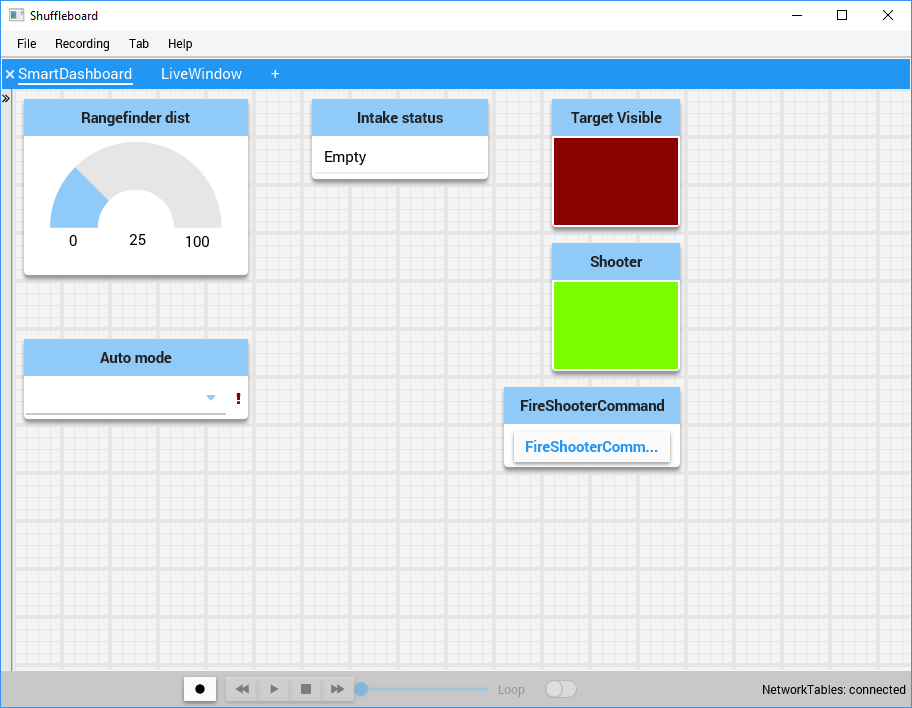
Essentially, Shuffleboard works like a dictionary. There are things called "key-value" pairs in Shuffleboard, where a key is something such as the name of a word. The value is the actual definition, or the value that key corresponds to. For instance, we might have a key called "Arm Angle" in Shuffleboard and the value for it might be a number like "30". We're not just limited to numbers however. We might have a key called "Shooter Up to Speed" and the value for it could be "True".
Subsystem Code
Each of our subsystems already have a method that can be used for outputting data with that subsystem. When we made each of our subsystems extend SnailSubsystem, they were created with the function displayShuffleboard(). We can put all of our outputting data code inside of this function and they will be automatically called at the appropriate time.
To actually send data to Shuffleboard, we first have to decide on a good key name. Normally, we want to prefix this key name with the subsystem name. For instance, if we wanted to print our arm's angle, we would make the key name "Arm Angle". For ambigious units, we would also want to include the units. So we would instead do "Arm Angle (deg)" to make sure that everyone knows what the units are.
Finally, we just have a few functions that we can use to output data (Note: you need to import SmartDashboard for this to work):
SmartDashboard.putNumber("key name here", 0);
SmartDashboard.putNumberArray("key name here", new double[] {12, 57});
SmartDashboard.putBoolean("key name here", true);
SmartDashboard.putBooleanArray("key name here", new boolean[] {true, false});
SmartDashboard.putString("key name here", "string here");
SmartDashboard.putStringArray("key name here", new String[] {"string here", "another string here});
For instance, if we wanted to output the angle reported by our gyroscope inside of the Arm class, we would do this:
public class Arm {
    ...

    @Override
    public void displayShuffleboard() {
        SmartDashboard.putNumber("Arm Angle (deg)", gyro.getAngle());
    }
}
This would constantly update Shuffleboard with the arm angle reported by our gyroscope.
Current
One sensor with data that we actually have access to already on almost every one of our motors is the current drawn by that motor. Almost all motors have some way of measuring this. Measuring current is extremely useful since if our current spikes, we can detect if there is a significant load on the motor or if the motor is stalling. We can measure this with the following:
// this code should work on both SPARK MAXes and Talon SRXes
SmartDashboard.putNumber("Motor Output Current (A)", motor.getOutputCurrent());
Temperature
Our SPARK MAXes also have a way to measure the temperature of the motor via code, which is shown below:
SmartDashboard.putNumber("Motor Temperature (deg C)", motor.getMotorTemperature());
Lag Considerations
One problem with Shuffleboard is that it can lag the computer running the robot a lot. To get around this, we do a few things. First of all, we do some behind the scenes work inside of RobotContainer to stagger the calls of displayShuffleboard() to ensure we don't output data too often. While this isn't something you can control too much, there are three things you can do to avoid lag.
- Print data extremely sparingly. Only print what you need to print and don't print much more.
- Print data together in the form of arrays and strings. Combine data into arrays to ensure that they're sent as one chunk of data instead of two separate chunks.
@Override
public void displayShuffleboard() {
    SmartDashboard.putNumberArray("Encoder Pos (l, r)", new double[] {leftEncoder.getPosition(), rightEncoder.getPosition()};
}
- Put data inside of testing mode. Put code inside of this
ifstatement to have it only run when testing mode is enabled.
@Override
public void displayShuffleboard() {
    if(SmartDashboard.getBoolean("Testing", false)) {
        SmartDashboard.putNumber("Testing Value", 10);
    }
}